

TRANSFER Photos FROM iPhone or iTouch to another iDevice using Bluetooth
Note: To transfer photos between two devices both of them must have this application installed and running.
Make sure that both devices are connected to the same Wi-Fi network.
SENDER Device:
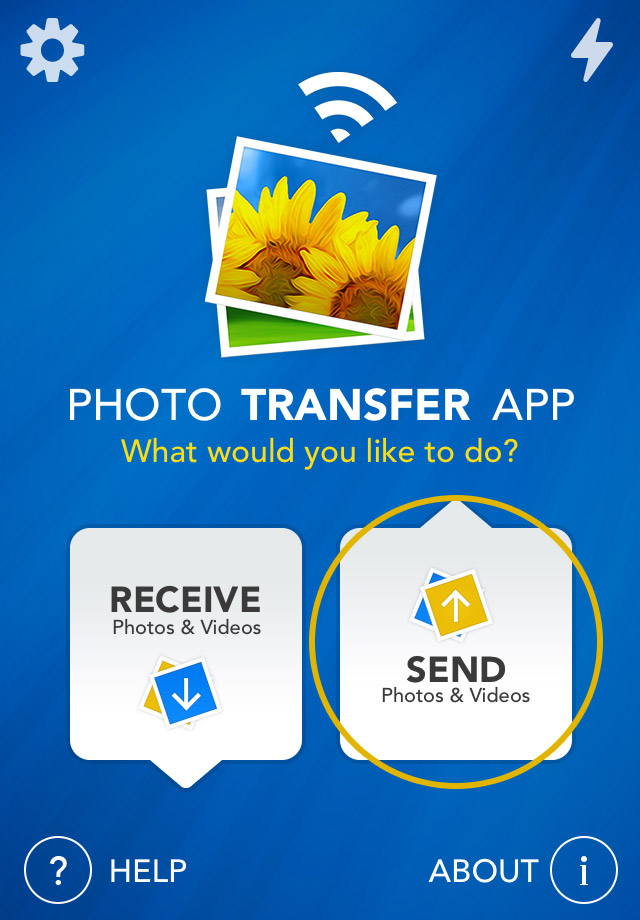
1 Open 'Photo Transfer' app and touch "SEND" button.
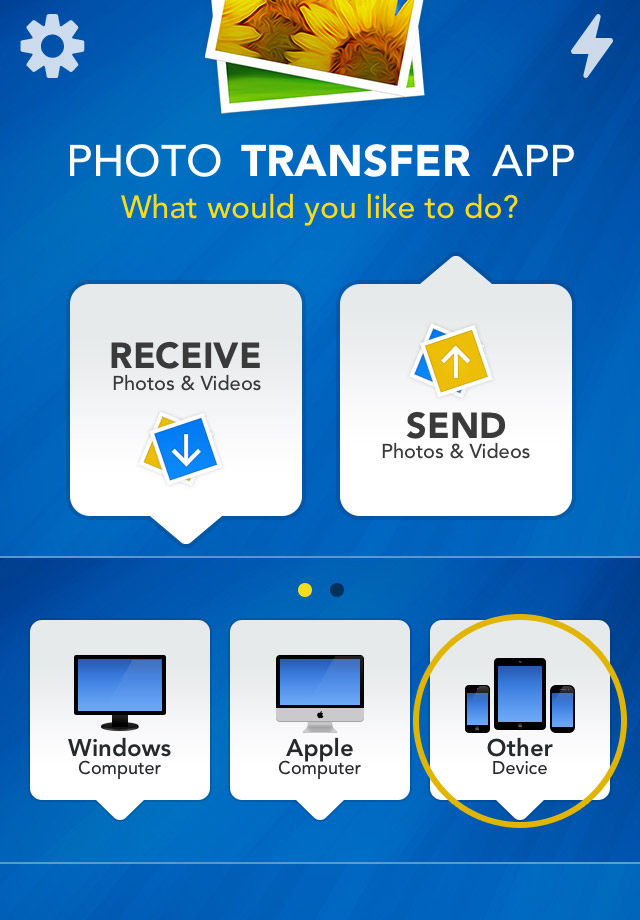
2 Touch the "OTHER Device" button.
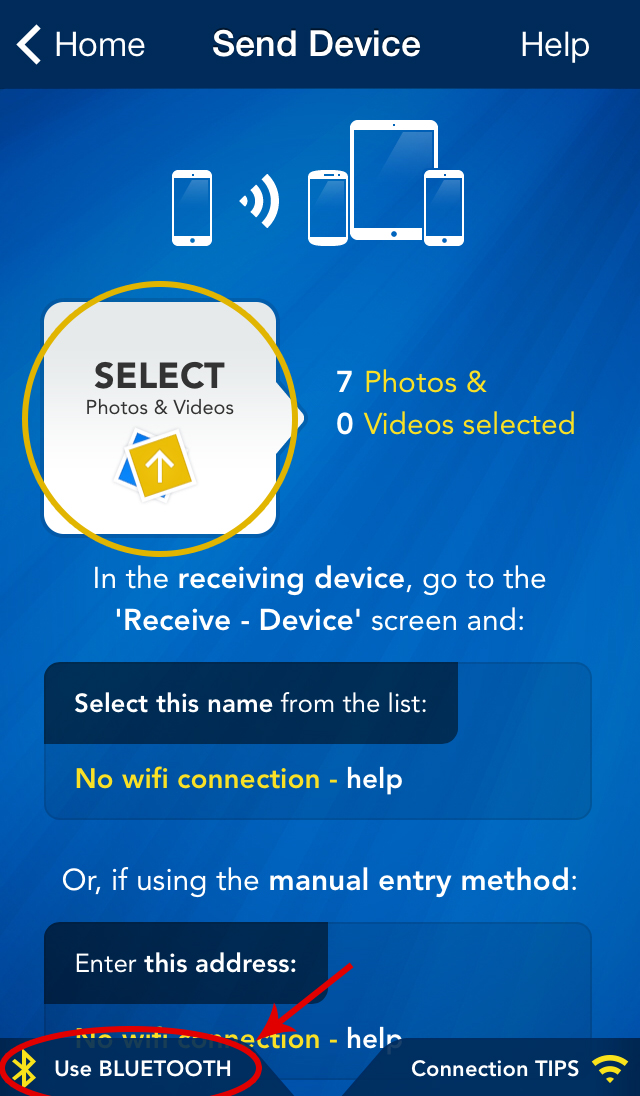
3 Tap "SELECT" button to select photos you want to send than tap "USE BLUETOOTH".
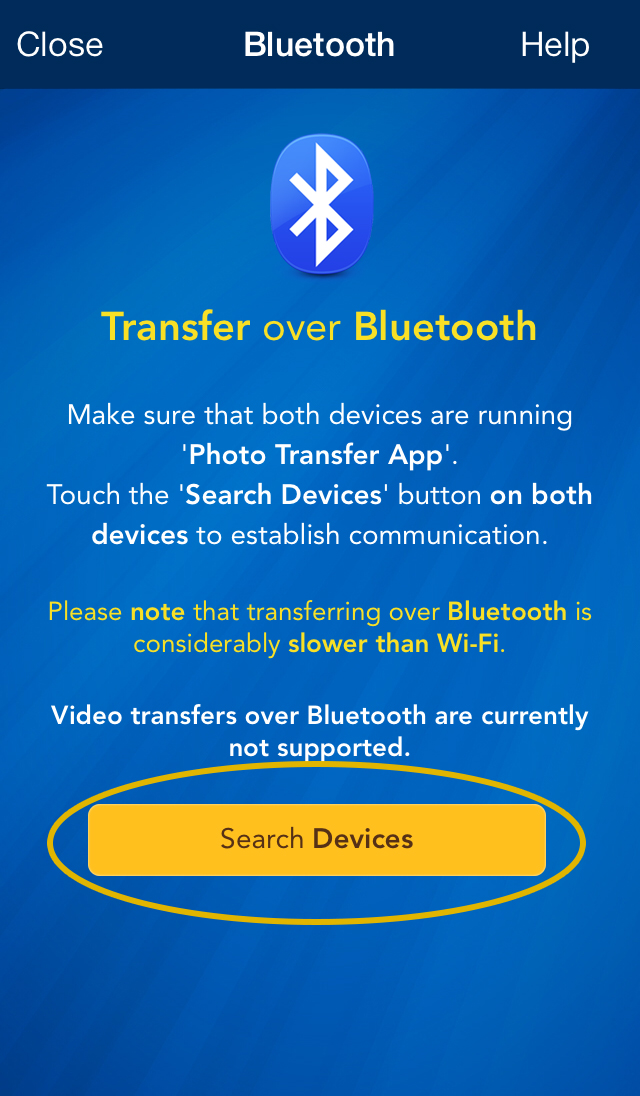
Make sure that Receiving device is on the Receive screen (follow next steps to get there).
4 Than, Tap "SEARCH DEVICES" button on both devices and follow the on-screen instructions.
RECEIVING Device:
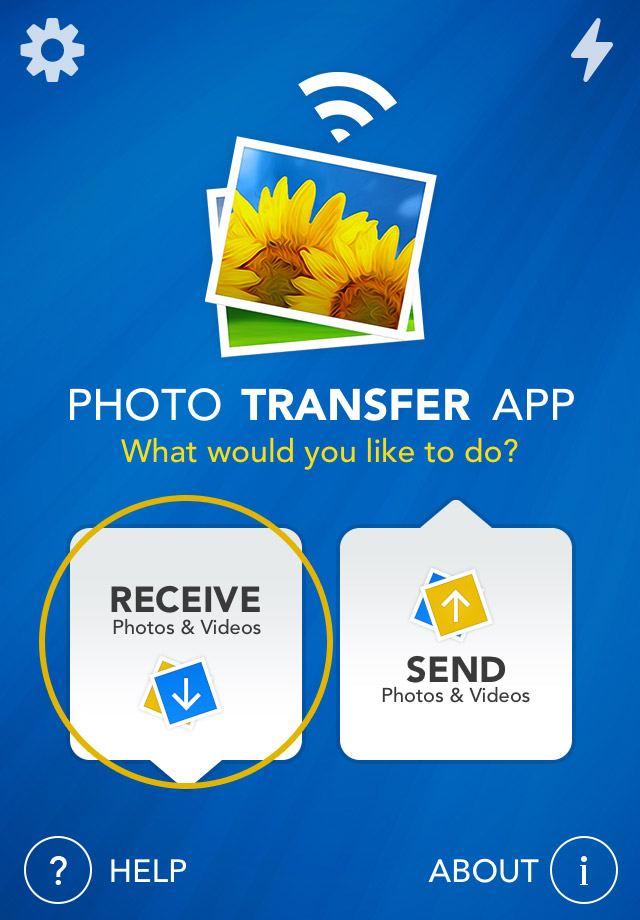
1 Open 'Photo Transfer' app and touch "RECEIVE" button.
2 Touch the "OTHER Device" button.
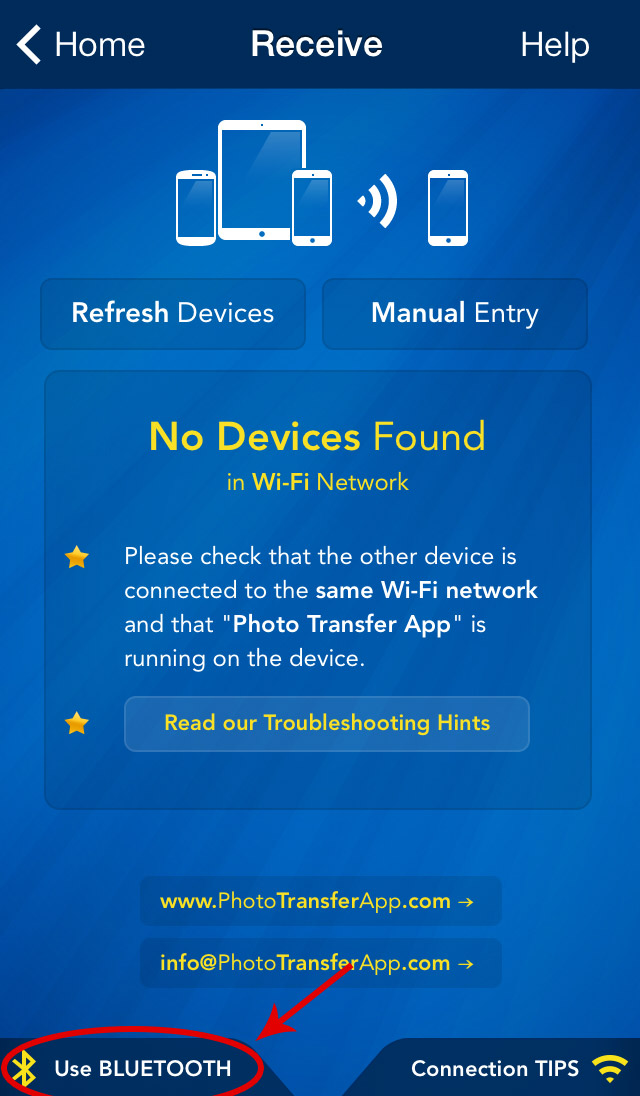
3 Touch the 'USE BLUETOOTH' button on both devices.
4 Then, touch the 'SEARCH DEVICES' on both devices and follow the on-screen instructions.
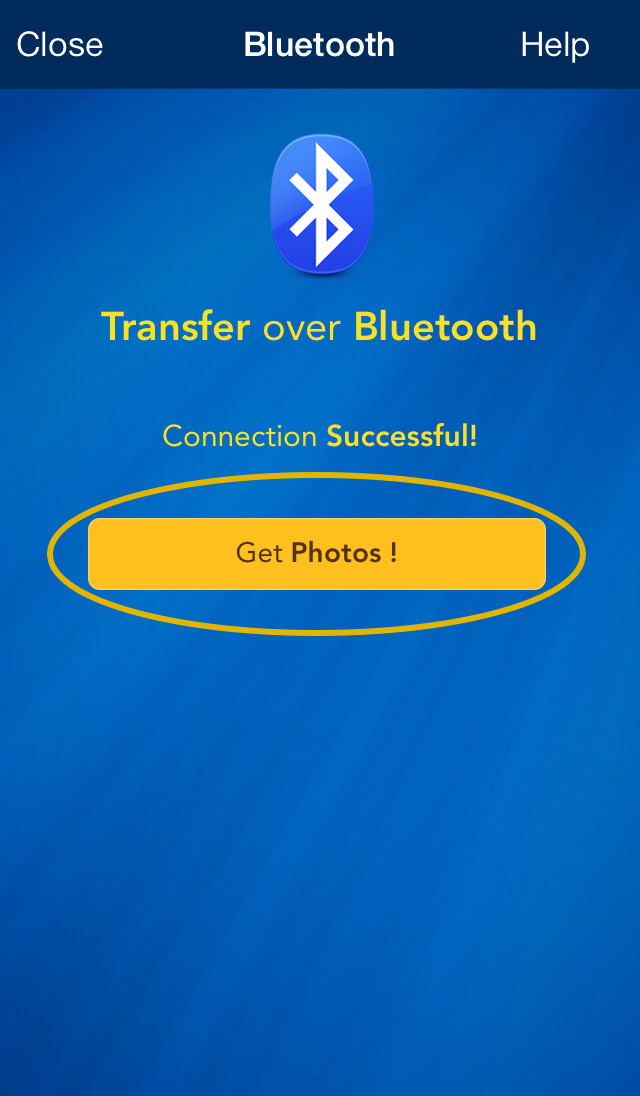
5 Touch the "GET PHOTOS".
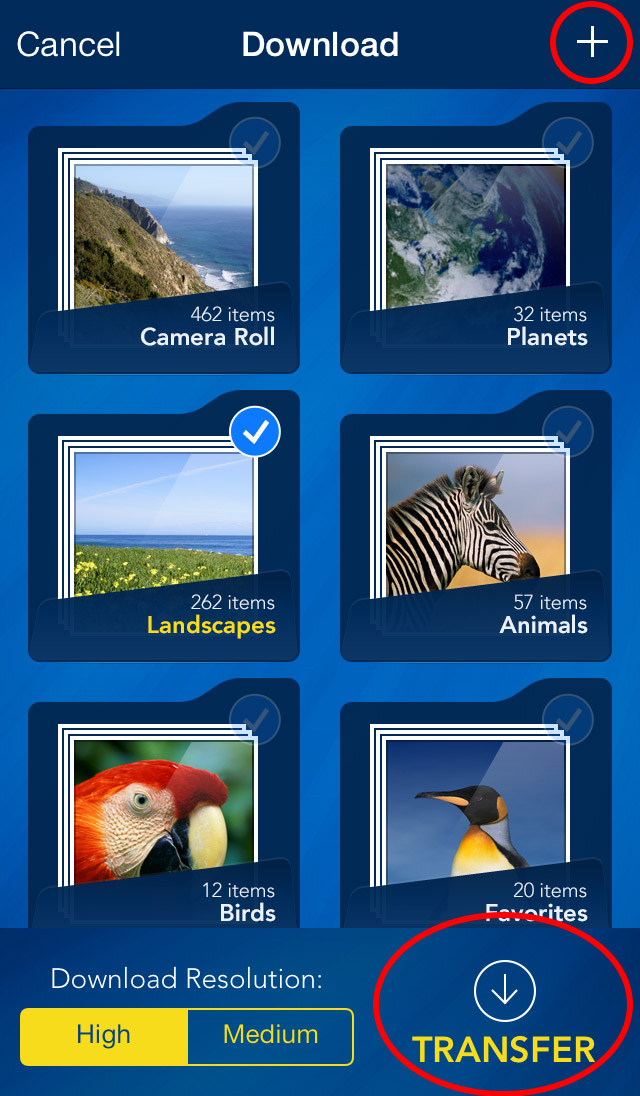
6 Choose where you want to save your photos, Existing album, or Create a New Album by pressing [+] button.
7 Press "TRANSFER" button to start the transfer.
Done!











NEED HELP ?
Get answers,
consult our Help Pages
for iPhone for iPad for Android for Plugins
Contact [email protected]