

This is the solution for you, If you are using a hotel, corporate, or public network which in some cases are configured to prevent communication between devices.
If this is the case you can create an 'ad-hoc' network between your Mac computer and iPhone, iPad or iTouch.
Creating Ad-Hoc (Computer - Device) Local Network on Mac Computer
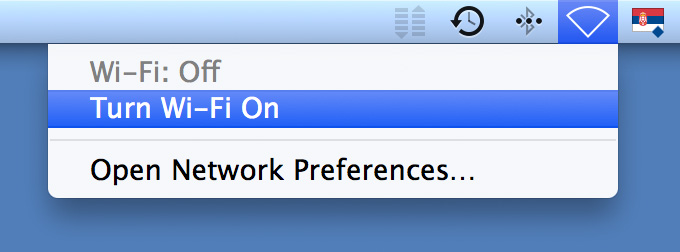
1 "Turn Wi-Fi On", on your Mac computer.
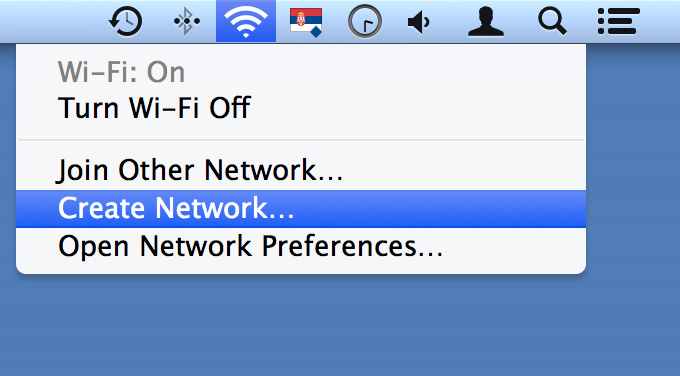
2 Click "Create Network ..."
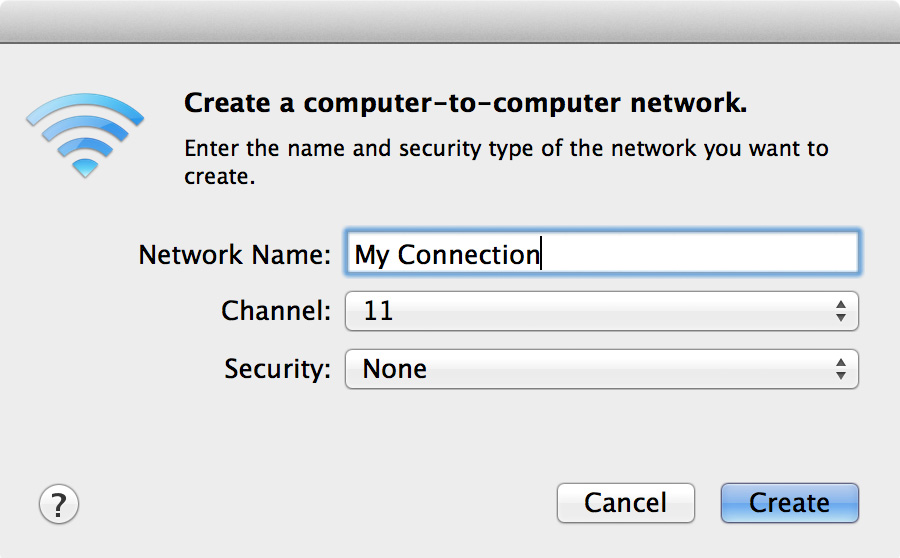
3 When this box pops up, in "Network Name" field enter desired name of your network.
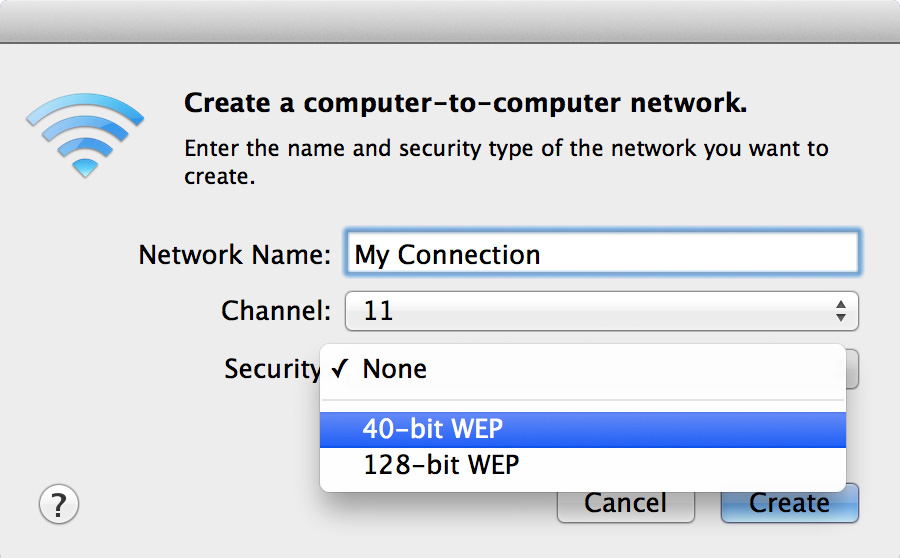
4 and for the Security, choose: "40-bit WEP"
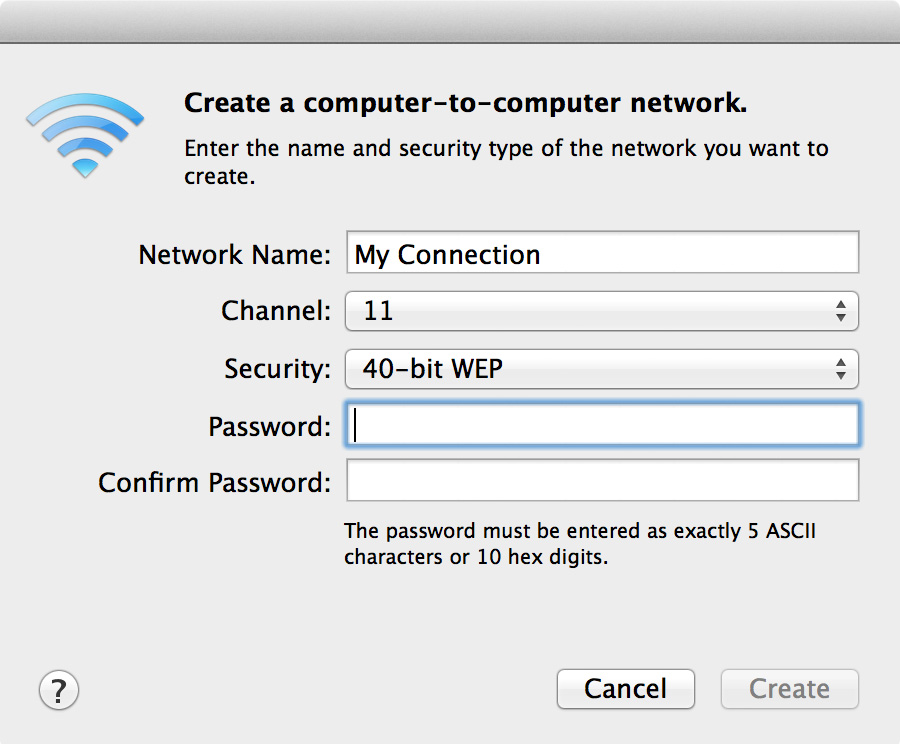
5 Choose your password containing: 5 letters or 10 numbers. (no more or less).
ex: "johns" or "1234567890"
(The password must be entered as exactly 5 ASCII character or 10 hex digits.)
6 Click "Create"
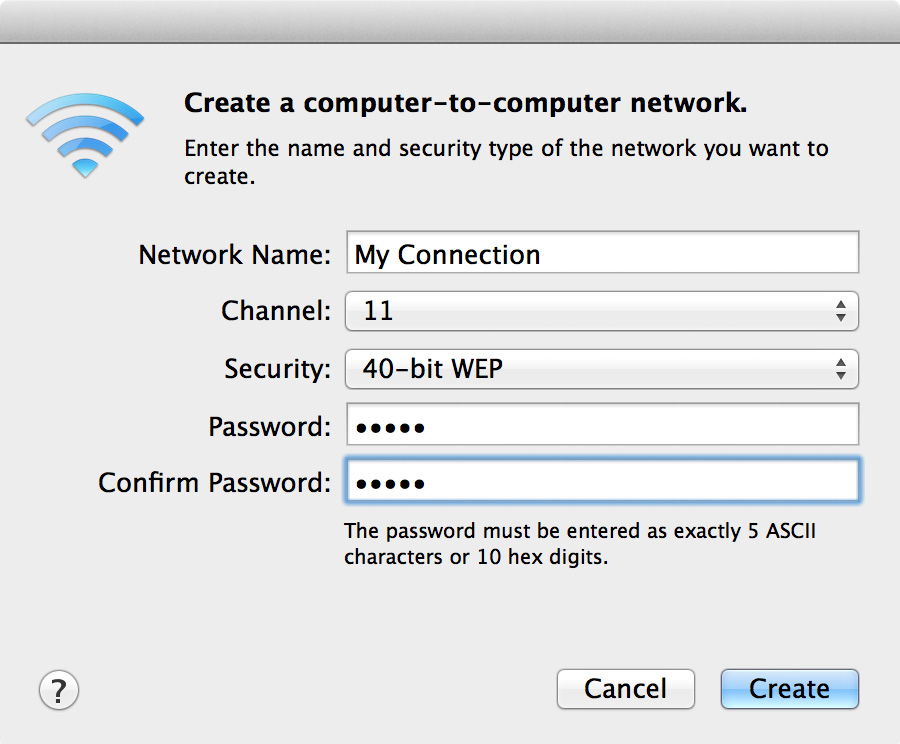
Your Wi-Fi Icon will change in the new icon
 , signaling that your connection is created.
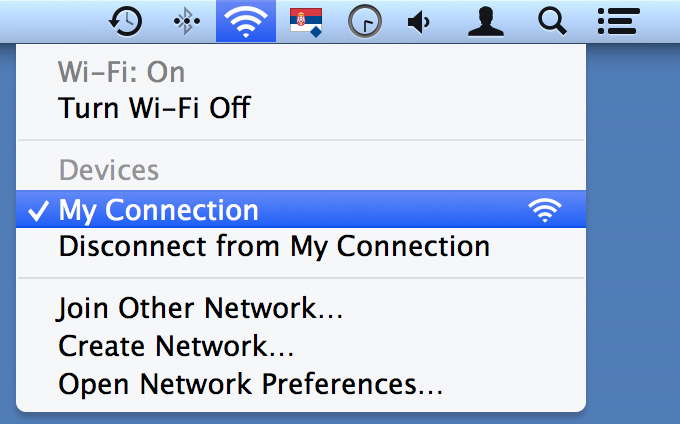
Ad-Hoc Connection is created, and now you can go to your iPhone, iPad or iPod touch and connect to you newly created connection, in this example called "My Connection".
Joining the newly created AdHoc network on your iPhone, iPad or iPod touch

1 Tap "Settings" App.
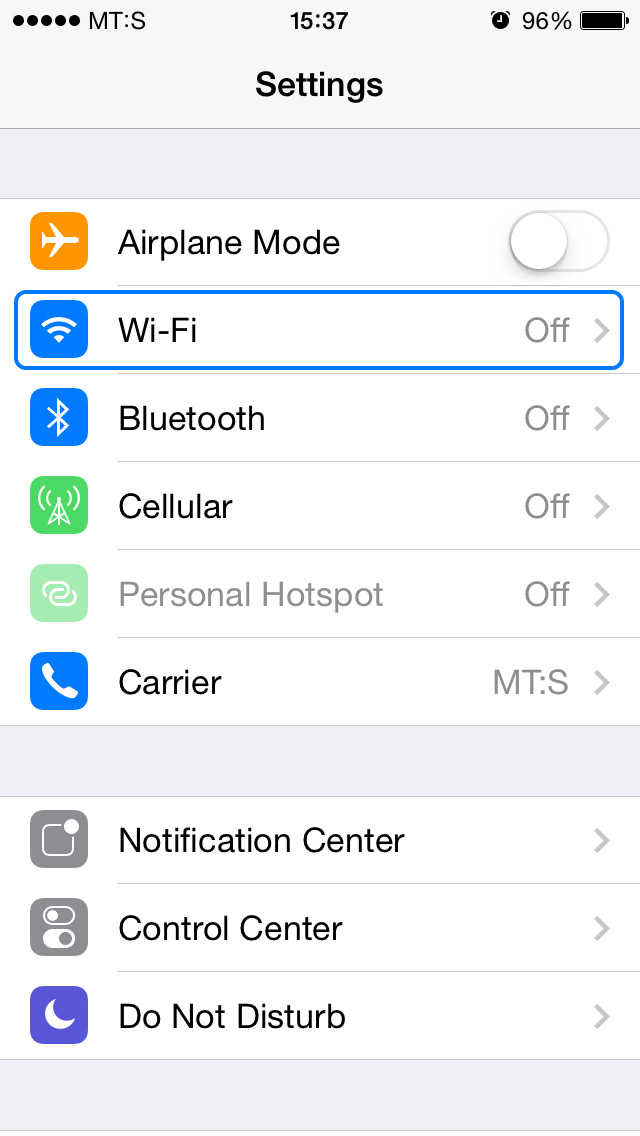
2 Choose "Wi-Fi" tab and turn Wi-Fi "ON".
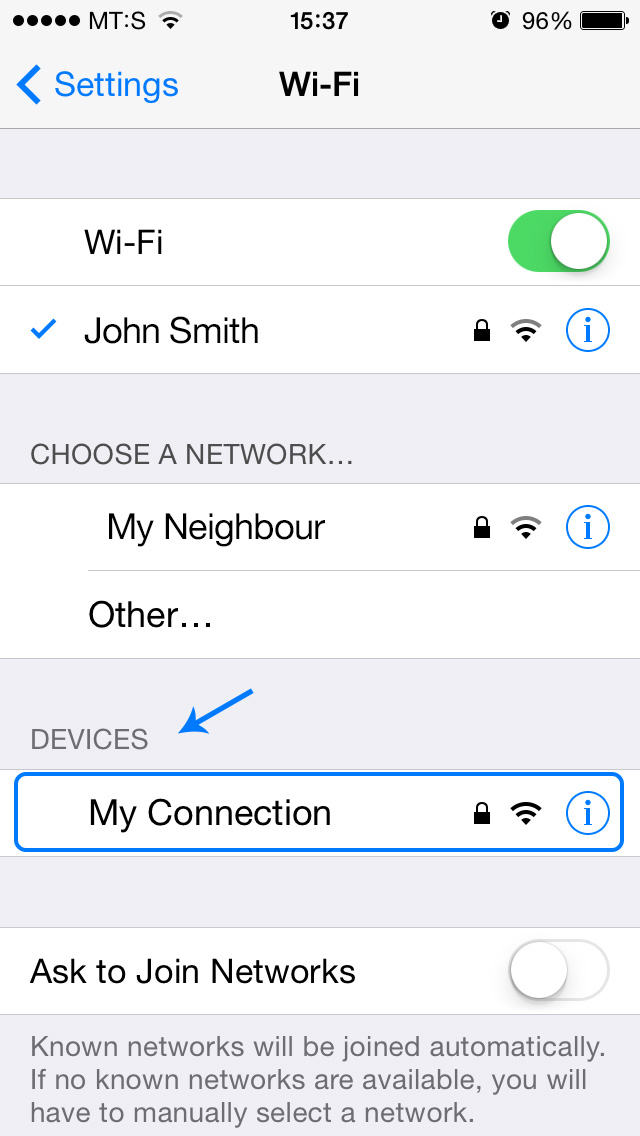
The list of available networks will show up, as well as your new connection, in this example it is "My Connection".
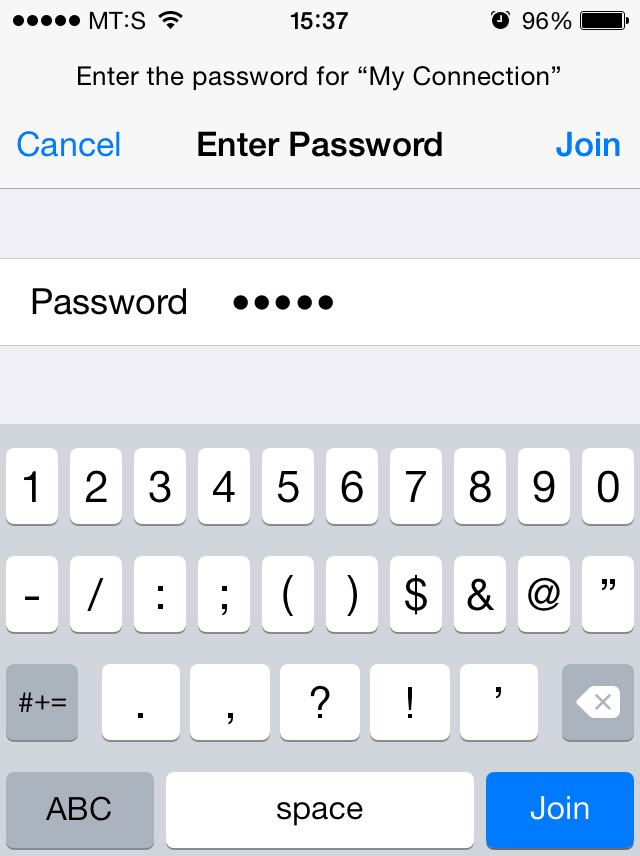
3 Select your Network, and you will be promped to enter the password we created before.
Please note:
! During the time your computer is hotspot you won't be able to access internet. This is exclusive local connection, in this case between your computer and your iPhone, iPad or iPod touch.
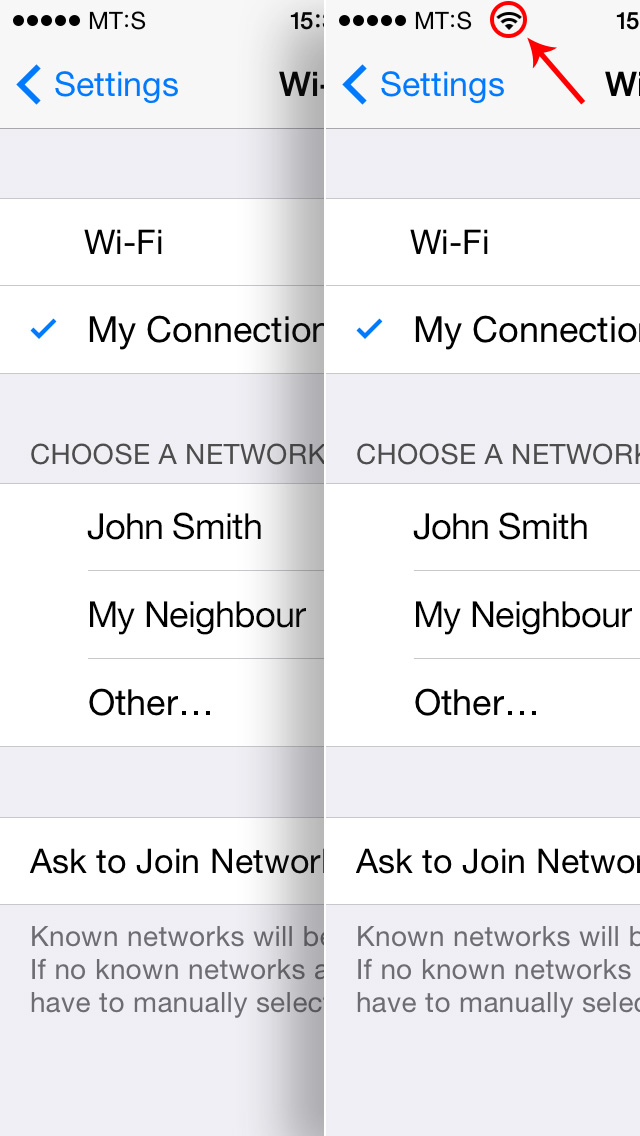
! It takes about 10 seconds for connection to be established. Do not open the Photo Transfer app until you see your connection is selected and active, and the Wi-Fi icon must shows up in the top left angle of your device.
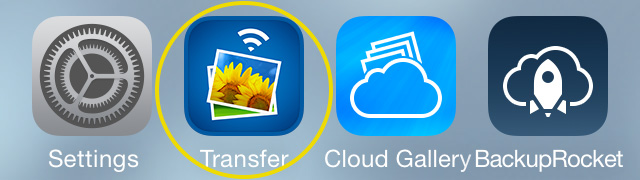
4 Now run Photo Transfer App on your iPhone, iPad or iPod touch and start transfering your photos and videos to your Mac computer.













NEED HELP ?
Get answers,
consult our Help Pages
for iPhone for iPad for Android for Plugins
Contact [email protected]