

Transfer from your Windows Computer to Android Device
Make sure that both devices are connected to the same Wi-Fi network.
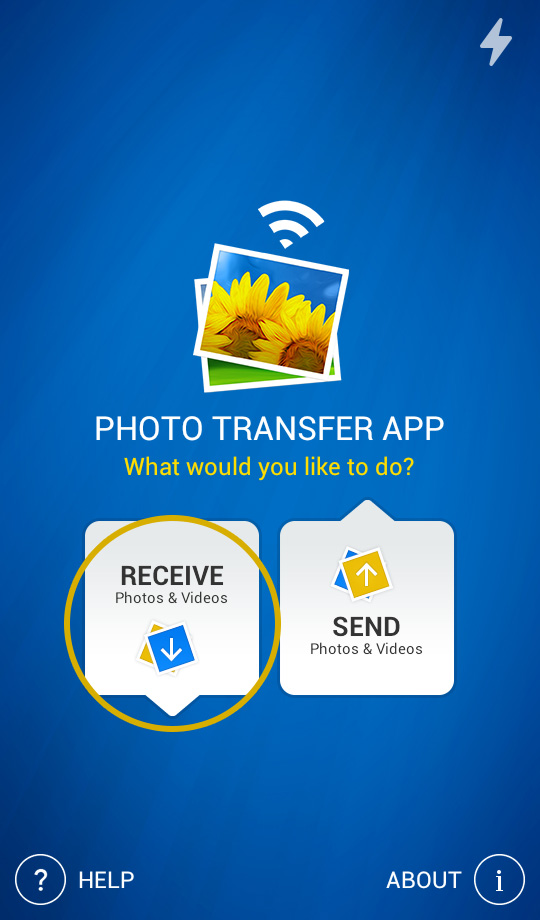
1 Open 'Photo Transfer' app and touch the"RECEIVE" button.
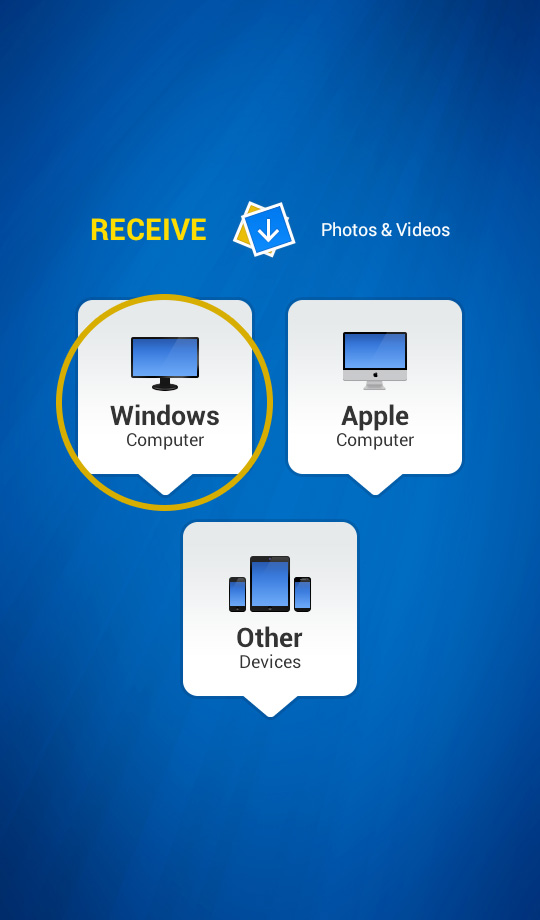
2 Touch the "Windows Computer" button.
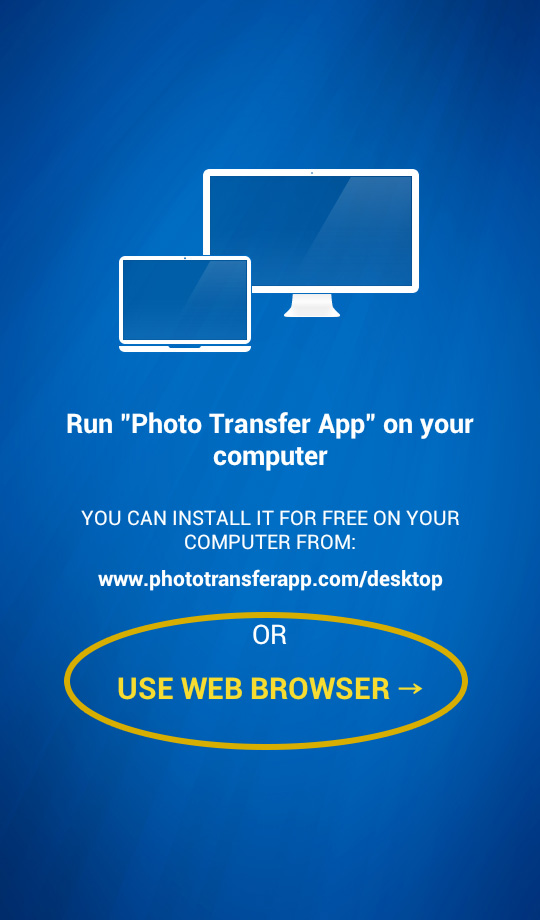
3 - A Open "Photo Transfer AppPhoto Transfer App" on your Windows Computer.
or
3 If you're using Web Browser, Touch the "USE WEB BROWSER" button.
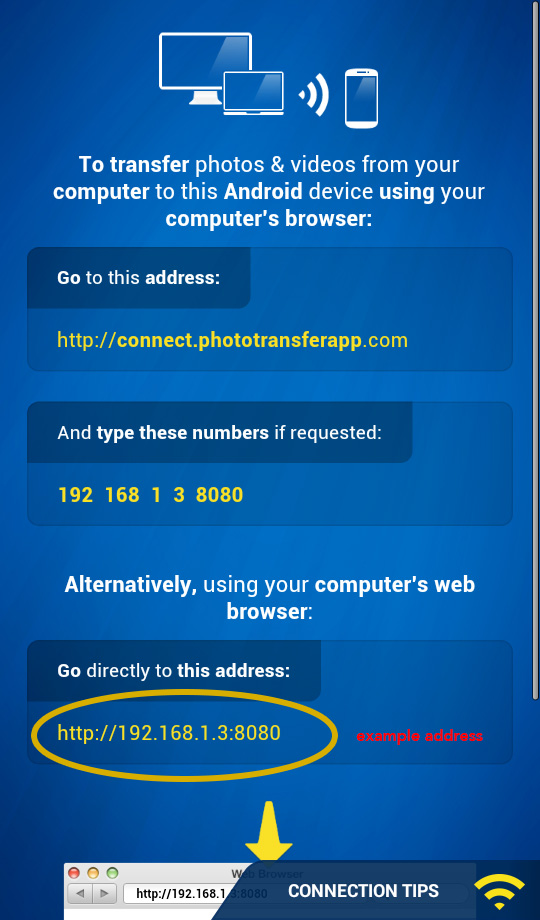
ON YOUR COMPUTER:
1 Open a web browser (Chrome, Safari or Firefox) in your computer and type http://connect.phototransferapp.com
Alternatively: Open a web browser in your computer and type the address exactly as that appears on your Android Device.
! Make sure that you type the address directly on the address bar and not on the Google search bar.
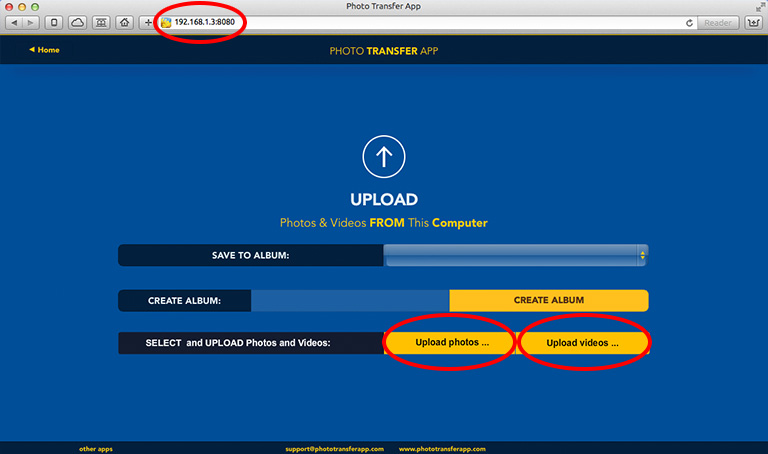
2 Click on the 'Upload Images' button. Then, choose the photos that you would like to upload from your computer to your Android.
To upload videos make sure that the videos are in .MOV format.
Done! You will see a progress bar in the web page as the images or videos are uploaded to your device.
In case you are using Internet Explorer 8 or later rather than other browsers like: Firefox, Safari or Chrome, please follow these steps if page is not displaying correctly.
In case you are using Internet Explorer 8 or later rather than other browsers like: Firefox, Safari or Chrome, please follow these steps if page is not displaying correctly.






NEED HELP ?
Get answers,
consult our Help Pages
for iPhone for iPad for Android for Plugins
Contact [email protected]